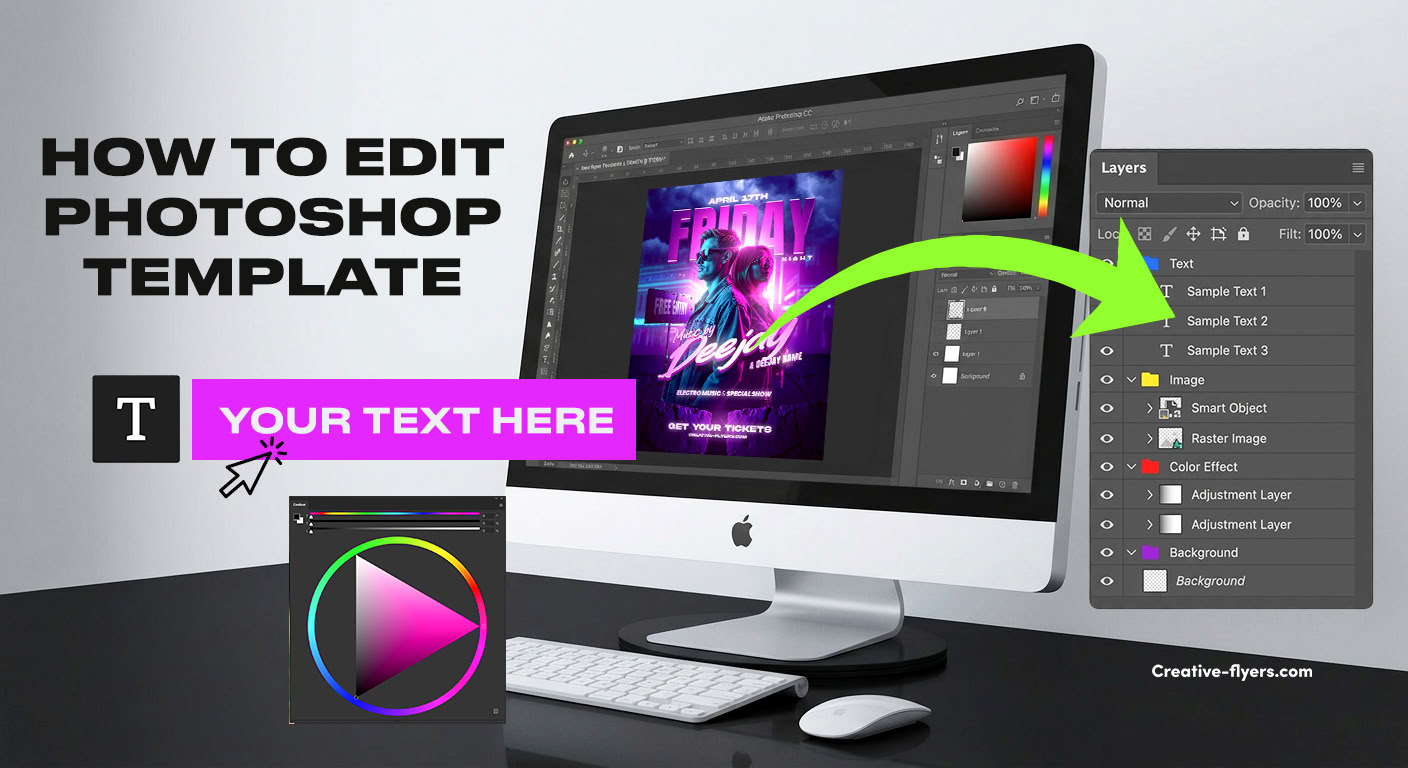
Quick Summary: Editing a Photoshop (PSD) flyer template involves four main steps: opening the file in Adobe Photoshop, replacing placeholder text with the Type Tool (T), updating images using Smart Objects, and exporting the file in CMYK at 300 DPI for high-quality printing (or RGB at 72–150 DPI for digital promotion). Premium PSD templates from platforms like Creative Flyers use organized, color-coded layers to make customization fast and easy, even for non-designers.
1. What Do You Need Before Editing a PSD Flyer Template?
Before opening your flyer template, ensure you have the following requirements ready:
- Software: Adobe Photoshop (CS6 or any Creative Cloud version).
- Flyer File: A clean
.psdtemplate (such as a premium template from the Creative Flyers catalogue). - Required Fonts: Download and install all fonts listed in the template’s
readme.txtor documentation file. - Your Assets: Your logo, event details, headline text, and high-resolution guest/DJ photos (PNG or high-res JPEG).
Pro Tip: Always install the required fonts before opening Photoshop. If you open the PSD first, Photoshop may replace missing fonts with default system fonts.
Don’t Have Adobe Photoshop? Edit Online for Free with Photopea
If you don’t have an active Adobe Photoshop subscription installed on your computer, you can still easily customize any PSD flyer template using Photopea—a completely free, browser-based graphic editor that supports native .psd files, layers, and Smart Objects.
How to edit your PSD template in Photopea:
- Open your web browser and go to Photopea.com.
- Go to File > Open and select the downloaded
.psdflyer template from your computer. - Install missing fonts directly inside Photopea by clicking File > Open and choosing your downloaded font file (
.ttfor.otf). - Edit text layers and replace model photos using Smart Objects exactly as you would in Photoshop.
- Export your final flyer by navigating to File > Export As > JPG, PNG, or PDF.
Note: Advanced layer styles and 3D effects created in high-end Photoshop versions will render accurately, though rendering times may vary based on your browser performance.
2. How to Edit Text in a Photoshop Flyer Template (Step-by-Step)
Modifying the event date, location, DJ line-up, and ticket information is the most common customization step.
- Open the Layers Panel: Press
F7on your keyboard (or go to Window > Layers). - Locate the Text Folder: Expand the layer group named “TEXT” or “TITLES”.
- Select the Type Tool: Press
Ton your keyboard or select the Horizontal Type Tool from the toolbar. - Click and Edit: Click directly on the text you want to change, type your new event details, and click the checkmark (✓) in the top toolbar to apply changes.
3. How to Replace Images and DJ Photos Using Smart Objects
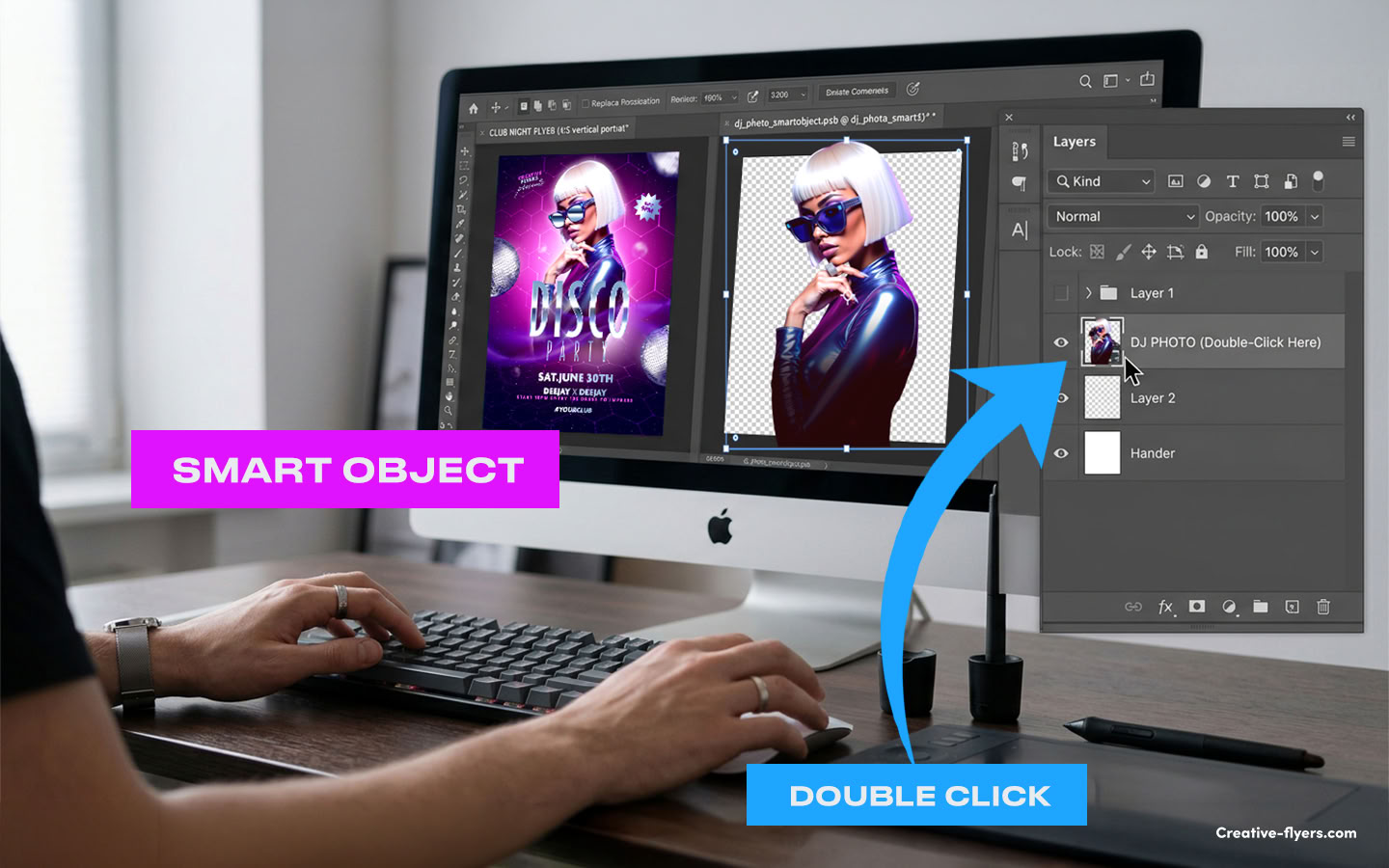
Professional flyer templates use Smart Objects so you can swap model photos or backgrounds without breaking lighting effects, filters, or 3D text overlays.
- Find the Image Layer: Look in the Layers Panel for a layer group labeled “MODEL”, “IMAGE”, or “REPLACE HERE”.
- Double-Click the Smart Object Thumbnail: Double-click the tiny icon on the layer thumbnail. A new tab (
.psbfile) will open. - Insert Your Photo: Go to File > Place Embedded…, choose your photo, and position it.
- Save and Close: Press
Ctrl + S(Windows) orCmd + S(Mac) to save the tab, then close it. Your main flyer template will automatically update with your new image while keeping all original lighting effects.
4. How to Change Colors in a PSD Flyer Template
To match your club or event brand identity:
- Adjustment Layers: Double-click the Hue/Saturation or Color Balance adjustment layers inside the “COLORS” or “EFFECTS” group to change the overall color palette instantly.
- Text & Vector Shapes: Double-click any shape or text layer thumbnail to open the Color Picker and select a new HEX or RGB color code.
5. What Specs Are Needed to Print & Share a Professional PSD Flyer?
Depending on whether your flyer is intended for physical printing or digital promotion (E-flyer), your export settings must match standard industry specifications:
| Specification | Print Requirement (Paper Flyers) | Digital Requirement (E-Flyers & Social) |
|---|---|---|
| Resolution | 300 DPI (Dots Per Inch) | 72 to 150 DPI |
| Color Mode | CMYK (4 Colors for Press) | RGB (Red, Green, Blue for Screens) |
| Bleed Area | 0.25 inches (6.35 mm) included | None (0 in) |
| File Format | PDF (Press Quality) or TIFF | JPG, PNG, or WebP |
How to Export for Web & Social Media:
Go to File > Export > Export As…, select PNG or JPG, ensure the Color Space is set to Convert to sRGB, and save your E-flyer.
6. Pro Tips & Common Photoshop Troubleshooting
Even for regular users, Photoshop can occasionally present small hurdles when customizing layout templates. Here is how to fix the three most common issues:
- Locked Layers / Background: If you try to move or edit an object and receive an error message, look at the Layers panel. If a layer features a padlock icon, simply click it to unlock the layer and enable full editing privileges.
- The “All Caps” Text Trap: If your text types entirely in uppercase letters even when Caps Lock is disabled, navigate to Window > Character to open the Character Panel, then click the All Caps (TT) toggle button to turn it off.
- Guides & Margins Visibility: Blueprint-like alignment lines help structure the template, but if they obstruct your view, you can instantly show or hide them using the keyboard shortcut
Ctrl + ;(Windows) orCmd + ;(Mac).
FAQs
Do I need Adobe Photoshop to edit a PSD flyer template?
While Adobe Photoshop provides the best compatibility and performance for advanced features like Smart Objects and effects, you can also open and basic-edit PSD templates using free browser-based tools like Photopea or desktop software like GIMP.
How do I fix the “Missing Fonts” error when opening a template?
This alert appears when the template uses custom typography that isn’t installed on your system. To fix it, check the documentation file included with your download, install the required free fonts on your computer, and restart Photoshop.
What are the standard sizes for event flyers and social media?
The ideal format depends on where you share it:
– Use 1080 x 1350 px (RGB) for Instagram and social media feed e-flyers.
– 1080 x 1920 px (RGB) for Stories and Reels,
– And standard 4×6 inches or A6 at 300 DPI (CMYK) for physical printing.
Why is my PSD file loading slowly or lagging in Photoshop?
High-resolution flyer templates designed for 300 DPI print output contain complex Smart Objects, 3D render assets, and color adjustment layers. If Photoshop lags, try purging your memory cache (Edit > Purge > All), allocating more RAM in Preferences > Performance, or closing unneeded applications.
Do Photopea and Photoshop render layer effects identically?
While Photopea supports over 95% of standard PSD features, including smart objects and text layers, some specialized Adobe lighting filters or proprietary 3D text effects might display slightly differently in web browsers. For maximum press-quality accuracy, Adobe Photoshop remains the industry standard.
Can I use free PSD flyer templates for commercial projects?
Yes, templates on Creative Flyers can be used for personal and commercial promotional projects (such as nightlife events, concerts, or business marketing). Check our official license terms page for complete guidelines.